File Manager
I feel painful to the cd command on Linux, and I don't like installing a bunch of separate tools just to jump between them. So I built a fairly complete yet compact File Manager right inside microNeo — switch directories, locate files, and open them for editing, all in one place.
How to open the File Manager
Running microNeo without a filename argument opens the File Manager automatically:
microneo
Running microNeo with a filename argument goes straight into the editor and skips the File Manager:
microneo README.md
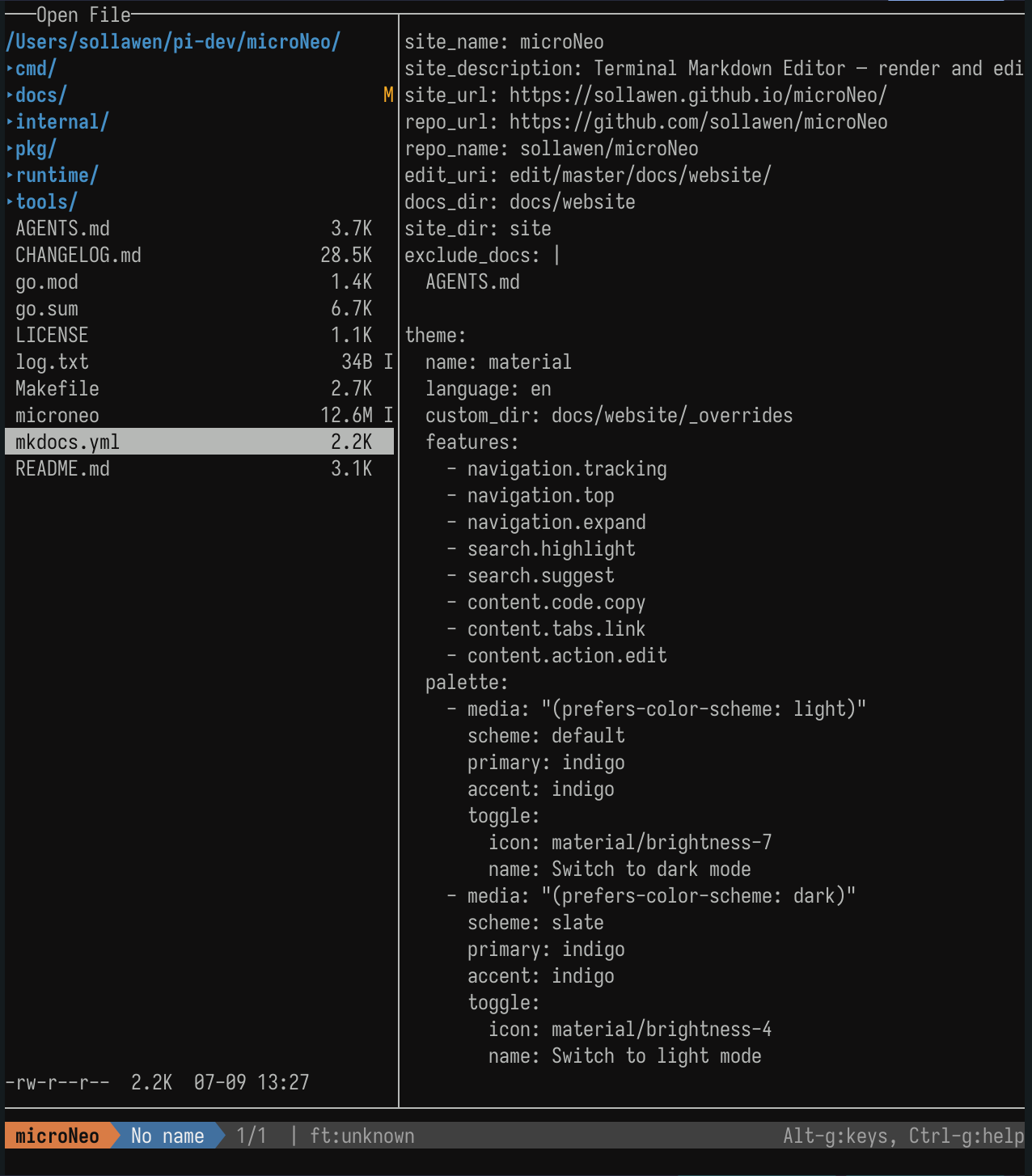
Opening the File Manager while editing
If you're already inside the editor, you can open the File Manager at any time to switch to a different directory and open another file.
- Press
Ctrl-qto close the current file and open the File Manager, then pick another file to edit. - Press
Ctrl-oto open the File Manager as well — whether to keep this binding around is still TBD.
Showing hidden files
By default, the File Manager does not show hidden files. While inside the File Manager, press . to toggle hidden files on and off.
File operations
r— Renamed— Deletea— Add- If the name you type ends with
/, a new subdirectory is created. - Otherwise, a new file is created.
- If the name you type ends with
Copy and Move are not supported on purpose. microNeo is fundamentally a convenient editor, so heavier file operations are best left to OS or a dedicated file manager.
Git status indicators
The File Manager shows the current Git status of each directory and file on the right side.
U -> Untracked, M -> Modified, D -> Deleted, I -> Gitignored
Other
- The File Manager supports mouse interaction.
- For text files and source code, a preview is shown on the right side.
Replacing cd in your shell
- The
cdcommand on Linux/macOS is painfully awkward when you're navigating deep directory trees. - microNeo borrows an idea from yazi, a popular terminal file manager: switch directories inside the File Manager, and when you quit, your shell's current directory is automatically set to the directory of the last file you opened.
How to set it up
Add the following to your .zshrc or .bashrc:
function m() {
    local tmp="$(mktemp -t "microneo-cwd.XXXXXX")" cwd
    command microneo "$@" --cwd-file="$tmp"
    IFS= read -r -d '' cwd < "$tmp"
    [ "$cwd" != "$PWD" ] && [ -d "$cwd" ] && builtin cd -- "$cwd"
    rm -f -- "$tmp"
}
Then run m from your shell to open microNeo and pick a file. When you quit, your shell's working directory is automatically switched to that file's directory.